
Best Local & Offline AI Tools in 2025: The No-BS Guide to Private AI
If you want AI superpowers without feeding every client secret to someone else’s API, this is your playbook. No hype, no “just use ChatGPT” laziness. We’re building a stack that actually runs on your hardware and respects your risk.
This guide is for consultants, agencies, creators and small teams who care about:
- Privacy — NDAs, compliance, and “I don’t trust random SaaS startups with my data.”
- Predictable cost — not mystery token bills.
- Real workflows — not toy demos.
1. 90-Second Reality Check: Can Your Machine Handle Local AI?
Most threads about “running Llama locally” are written by people with gaming rigs and too much free time. You probably have client work to do.
Start with this quick check and don’t lie to yourself.
If this tells you “go hybrid”, listen. Forcing everything offline on weak hardware is how people decide “local AI sucks” when the real problem is their laptop.
2. What “Local AI” Really Means (And Where Vendors Cheat)
“Local” is abused. Here’s the translation layer:
2.1 The Three Flavours of “Local”
- True local / offline
Model runs on your machine. After download, it works with Wi-Fi off. Your prompts and docs stay with you unless you expose them. - Self-hosted / on-prem
Model runs on hardware you control (office box, home lab, tightly locked-down VM). Great for teams. - “Local app, cloud brain”
Desktop app, but every query still hits a vendor API. This is not a privacy win, it’s just nicer UX.
When I say “local AI tools” below, I mean true local or self-hosted. Cloud-wrapped-in-an-app does not count.
2.2 When Local AI Is the Wrong Answer
Go cloud-first (for now) if:
- You’re on 8 GB RAM, no GPU, and you rage-quit if a reply takes 10 seconds.
- Your main workload is massive multi-modal reasoning (complex images, huge codebases, gnarly spreadsheets) and you’re not ready to upgrade hardware.
- You just want a chatbot for generic marketing ideas. You don’t need local AI for “10 TikTok hooks”.
The sane model in 2025: local for sensitive, recurring workflows; cloud for everything else.
3. Hardware That’s Actually Worth Buying
Ignore Reddit flex threads. Here’s the practical map.
| Tier | Typical Machine | Good For | Bad At |
|---|---|---|---|
| Tier 1: Bare Minimum | 8–16 GB RAM laptop, no dedicated GPU | 3B–7B models, note-taking, simple drafts, light coding help. | Big models, multi-doc RAG, video/image heavy stuff. |
| Tier 2: Serious Solo Operator | 16–32 GB RAM MacBook (M-series) or laptop with decent GPU / strong iGPU | 7B–14B models, doc Q&A, proposals, reports, coding. | Huge context + 70B models at comfy speed. |
| Tier 3: Local AI Workstation | 32–64 GB RAM, RTX / Radeon 12–24 GB VRAM | 30B–70B models, team use, heavy RAG, image/video generation. | Your power bill and fan noise. |
If you’re Tier 1, treat local AI like a precision tool, not an “everything” engine. Tier 2/3 can run most of their business on local + selective cloud bursts.
4. Real Benchmarks & “My Setup”
Forget abstract benchmarks. You care about “how long until I get something useful?”
4.1 Real Task Benchmarks (What You Actually Care About)
| Task | MacBook Air M2 (7B model) | Desktop RTX 4070 (7B model) | Cloud (GPT-4o) |
|---|---|---|---|
| Draft 800-word proposal from bullet points | 2–3 minutes | 45–60 seconds | 20–30 seconds |
| Summarize 3,500-word meeting transcript | 1.5–2 minutes | 35–45 seconds | 15–20 seconds |
| Extract action items from 2,000-word email thread | 60–90 seconds | 25–35 seconds | 10–15 seconds |
| First-pass NDA red flag scan | 3–4 minutes | 60–90 seconds | 30–45 seconds |
4.2 Token Speeds (For Reference Only)
| Machine | Model Size | Tokens/sec | Time for 1,000 tokens |
|---|---|---|---|
| MacBook Air M2 (16 GB) | 7B quantised (Q4) | 18–24 t/s | 42–56 seconds |
| MacBook Air M2 (16 GB) | 13B quantised (Q4) | 8–11 t/s | 91–125 seconds |
| Desktop + RTX 4070 (12GB) | 7B–14B | 45–65 t/s | 15–22 seconds |
| Desktop + RTX 4070 (12GB) | 30B+ quantised | 18–28 t/s | 36–56 seconds |
5. The Core Local AI Stack (Tools That Deserve To Be Installed)
You don’t need eight tools. You need one good one that matches your setup.
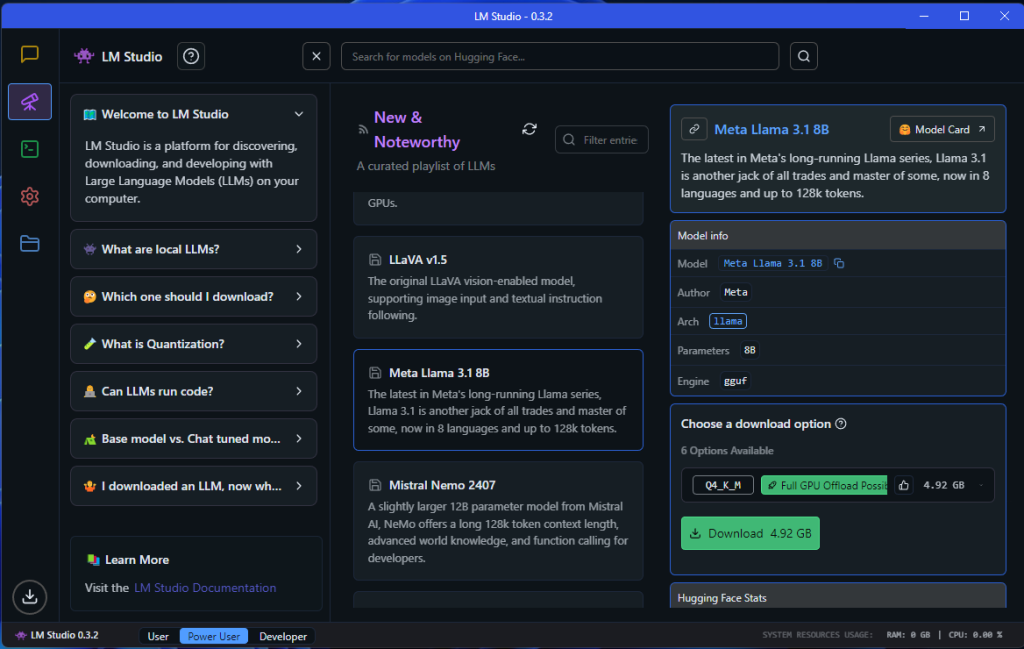
5.2 LM Studio – Best for Mac Users Who Want a GUI
Use if: You’re on Mac (especially M-series), you want a clean interface to download and run models, and you might expose an API for other tools.
- ✅ Browse, download, and run models with a few clicks
- ✅ Chat interface that feels like ChatGPT
- ✅ Exposes OpenAI-compatible API
- ❌ Not built for heavy scripting
5.3 Ollama – Best for Developers and Automation Nerds
Use if: You like the terminal and want to wire models into your own tools.
- ✅ Install models with
ollama pull llama3.1:8b - ✅ Scriptable and automation-friendly
- ✅ Runs on Mac, Linux, Windows
- ❌ Needs a UI layer (e.g. Open WebUI) for non-technical teammates
5.4 Jan – Best Offline-First App for Non-Techies
Use if: You want a ChatGPT-like desktop app that can run fully offline but also talk to cloud models when you allow it.
- ✅ Desktop experience, no terminal
- ✅ Models run 100% offline after download
- ✅ Simple toggle between local and cloud
- ❌ Less flexible for advanced automation
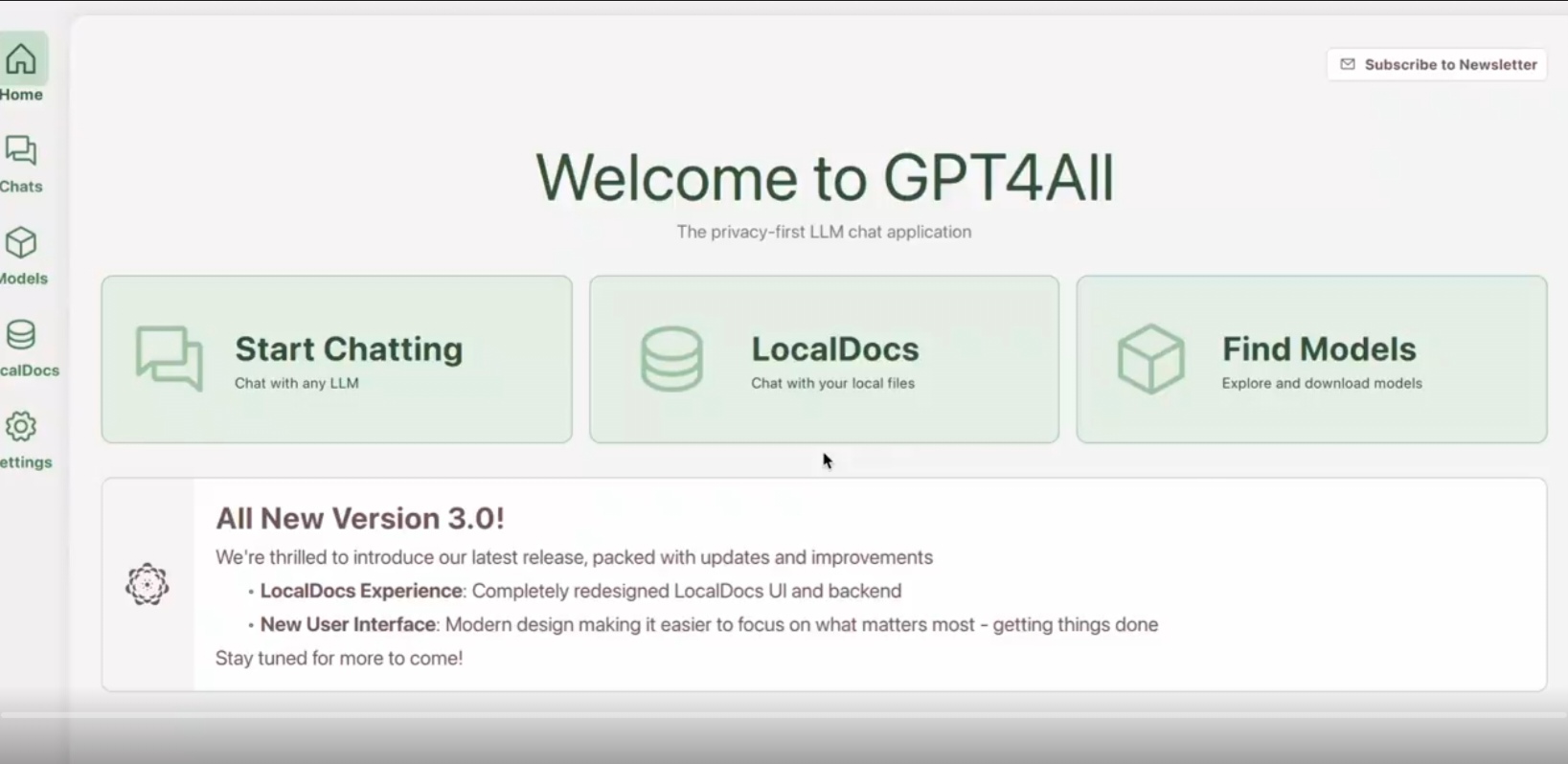
5.5 GPT4All – Best for Modest Hardware + Document Search
Use if: You have 8–16 GB RAM, no GPU, and you care about private document Q&A.
- ✅ CPU-only friendly
- ✅ LocalDocs indexes PDFs, Word docs, text
- ✅ Great for contracts, reports, policies
- ❌ Slower than GPU setups
5.6 Local RAG (Document Search): The Killer Feature
This is where local AI jumps from “toy” to “tool”. Instead of chatting in a vacuum, you let it read your docs.
Setups:
- GPT4All: Use LocalDocs.
- LM Studio: Pair with AnythingLLM or Perplexica.
- Ollama: Add Open WebUI and use its document features.
5.7 For Creators: Transcription and Media Tools
Text is only part of your stack:
- Whisper (local): Offline speech-to-text.
- Stable Diffusion: Local image generation (needs GPU).
- ComfyUI / Automatic1111: Advanced image workflows.
6. Persona Stacks: Writer, Agency, Legal, Creator
You don’t make money “using AI”. You make money running workflows. Pick your persona and steal this stack.
6.1 Writer / Consultant (Client Work, Proposals, Reports)
- Tool: Jan or GPT4All (if under 16 GB RAM)
- Model: Llama 3.1 8B or Mistral 7B
- Workflow: “Client Briefs” folder → index → prompts for proposals, summaries, and rewrites in your voice.
- Cloud: Research and idea generation.
6.2 Agency / Automation Shop
- Tool: Ollama + Open WebUI on a central machine
- Workflow: Team hits a local API for briefs, scopes, SOPs; automation tools (Make/n8n) plug into it.
- Cloud: High-volume, low-risk content and experiments.
6.3 Legal / Compliance / Finance
- Tool: GPT4All with LocalDocs on encrypted machine
- Workflow: Index contracts and policies, use prompts for issue spotting, clause comparison, and summaries.
- Cloud: General legal research and public filings only.
6.4 Creator / YouTuber / Podcaster
- Tools: Jan or LM Studio + Whisper
- Workflow: Transcripts → scripts, show notes, titles, hooks, newsletter drafts.
- Cloud: Thumbnails, heavy editing features, SEO tools.
7. Setup Path: From Zero to Useful in a Weekend
No more theory. Two practical setups: one for Mac + LM Studio, one for Windows + GPT4All.
7.1 Example: Mac User Setting Up LM Studio for Proposal Work
Time: 2–3 hours including download time.
Step 1: Install LM Studio
- Go to
lmstudio.ai, download for macOS. - Install and open the app.
Step 2: Download a Model
- In LM Studio, open “Search”.
- Search for “llama-3.1-8b-instruct”.
- Pick a Q4 quantized version (~4–5 GB) and download.
Step 3: Test
- Open “Chat”, choose your model.
- Prompt: “You are a business consultant. Turn these bullet points into a 500-word proposal: [paste 5 bullets]”.
- Make sure you get something usable in ~1–3 minutes.
Step 4: Wire It to Real Work
- Create
~/Documents/AI-Workspace/Proposal-Templates. - Drop in a few past proposals and your service description.
- Use a system prompt that tells the model to mimic your structure and tone.
- Save the prompts that work in a note for fast reuse.
7.2 Example: Windows User Setting Up GPT4All + LocalDocs
Time: ~2 hours.
Step 1: Install GPT4All
- Go to
gpt4all.io, download the Windows installer. - Install and open the app.
Step 2: Download a Model
- In GPT4All, open “Models”.
- Download “Mistral Instruct 7B” or “Llama 3 Instruct 8B”.
Step 3: Set Up LocalDocs
- Create
C:\Documents\AI-Client-Work. - Add a handful of real-but-safe PDFs or Word docs.
- In Settings → LocalDocs, create a collection pointing to that folder.
Step 4: Ask Real Questions
- Enable LocalDocs in the chat UI.
- Ask: “What are the standard deliverables in my past proposals?”
- Then: “List contracts with payment terms longer than net-30.”
7.3 Common Failure Modes (And How to Fix Them)
| Problem | Likely Cause | Fix |
|---|---|---|
| App crashes on launch | Not enough RAM / older OS | Try GPT4All (lower requirements) or stick with cloud. |
| Model is absurdly slow (>5 min) | Model too big for your hardware | Drop to 3B or better-quantised 7B. |
| Output is gibberish | Wrong model format / bad download | Re-download or switch models. |
| LocalDocs finds nothing | Documents not indexed / wrong folder | Re-index, use real text (not scans). |
| API not reachable | Firewall / wrong bind address | Bind to localhost first, then open up carefully. |
8. Security & Compliance: How Not to Shoot Yourself in the Foot
“Local” doesn’t magically mean “secure”. It means you own the blast radius now.
8.1 Horror Story: The Spotlight Leak
8.2 Horror Story: The Accidental API Exposure
8.3 Minimum Security Baseline (Do This Or Don’t Bother)
- Encrypt your drive: FileVault (macOS), BitLocker (Windows Pro), LUKS (Linux).
- Separate workspace: Dedicated user account or encrypted volume for AI + client docs.
- Network discipline: APIs bound to
127.0.0.1unless you’re behind VPN + auth. - Access control: Lock screens, strong passwords / passkeys, limited physical access.
8.4 Light-Touch Audit Trail
One doc, updated monthly, answering:
- Which AI tools you use.
- Which folders they can see.
- Who has access to which machines.
- What changed recently (new tools/models).
8.5 For High-Stakes Work
- Use a machine that’s offline during sensitive sessions.
- Move data via encrypted USB, not sync folders.
- Physically secure the box.
8.6 Compliance Reality Check (Not Legal Advice)
- GDPR: Local helps with data locality, but you still need lawful basis, minimisation, retention, deletion.
- HIPAA-like / regulated work: Local AI is part of your controls, not a replacement. Logging, access, training still matter.
- Privilege: Local AI on your own infra is far safer than random SaaS, but document your approach.
9. Cloud vs Local Cost Reality Check
Local AI is not “free”. It just moves cost from tokens to hardware + your time.
9.1 Worked Example: Solo Consultant
9.2 Interactive Cost Calculator
Plug in your reality instead of guessing.
10. Mini Case Study: Proposal Workflow, Cloud → Local
One real agency, one workflow, no theory.
10.1 The Business
- Who: 3-person B2B marketing agency.
- Workflow: Discovery calls → proposals.
- Volume: 30–35 proposals/month.
- Before: Claude Opus for summaries + drafts.
10.2 The Problem
Discovery notes contained unannounced product plans, sensitive pricing, and competitive intel. Two clients asked exactly where AI requests went.
10.3 The Hybrid Fix
- Hardware: MacBook Pro M2 Max, 32 GB RAM (already owned).
- Tool: LM Studio, Llama 3.1 8B (Q4).
- Change: Sensitive proposals → local, generic ones → cloud.
- Extras: 5 saved prompts for proposals and follow-ups.
10.4 Three-Month Results
| Metric | Before (Cloud) | After (Hybrid) |
|---|---|---|
| Avg time per proposal | 35–40 minutes | 30–35 minutes |
| Cloud API cost | $45–65/month | $18–25/month |
| Proposals kept 100% local | 0% | 40% |
| Client pushback on AI use | 2 incidents | 0 incidents |
“Local is slower, sure. But it’s 5 minutes vs 2 minutes, not 5 vs 50. For sensitive deals, I’ll happily wait the extra 3 minutes to know those notes never left my laptop.”
11. FAQs: Brutally Honest Answers
11.1 Will local AI ever match the very best cloud models?
Not soon. Frontier cloud models will stay ahead on raw capability. But for 80% of business tasks—drafting, summarising, first-pass analysis—7B–13B local models are already “good enough”. Think Porsche vs Honda: one is faster, both get you to the client meeting.
11.2 Can I run local AI on an 8 GB laptop?
Yes, but you’ll probably hate it. Use small or heavily quantised models, expect slow responses, and keep expectations low. For serious daily use, 16 GB is baseline, 32 GB is comfortable.
11.3 Is local AI automatically “compliant” or “secure”?
No. It just means you’re responsible instead of a vendor. You still need encryption, access control, basic policies, and some kind of audit trail. Local is a tool that supports compliance, not a magic shield.
11.4 What’s the fastest path to ROI?
Pick one high-value workflow (proposals, contract summaries, meeting-notes → emails), move it local, and measure for a month: time, cloud cost, and risk reduction. If it looks good, expand. If not, stick with cloud and try again later.
11.5 How should I split work between local and cloud?
Simple rule:
| Use Local For… | Use Cloud For… |
|---|---|
| Contracts, NDAs, pricing, internal strategy | Blog posts, social content, generic brainstorming |
| Sensitive proposals and reports | Standard marketing materials |
| M&A docs, litigation prep, private code | Public research, open-source code help |
11.6 What if my clients don’t care about AI privacy (yet)?
Then you don’t have to rush. Cloud is fine for now. But “we can keep your data 100% local if you prefer” is a differentiator when privacy finally shows up in their RFPs.
11.7 Can I use local AI for coding?
Yes—for explanation, small refactors, scripts, and first-pass reviews. For huge codebases and deep debugging, cloud tools are still ahead. A good split: local for proprietary code you’re paranoid about, cloud for everything else.